
Before you start
Open Sociome’s world in a browser that can display the 3D stage. You will use the chat input to create the object and the pencil editor to change your own creation. A mouse and keyboard make inspection convenient; the on-screen joystick also lets you move.
This guide produces an object inside Sociome. It does not produce a guaranteed print-ready file or an engineering drawing. For assets to use in another application, compare a specialist workflow such as Meshy against the file format and geometry your project needs.
Build 3D objects with AI, one at a time.
Use a subject, material, main parts, and a placement. This gives the AI a manageable object and gives you a clear way to judge it.
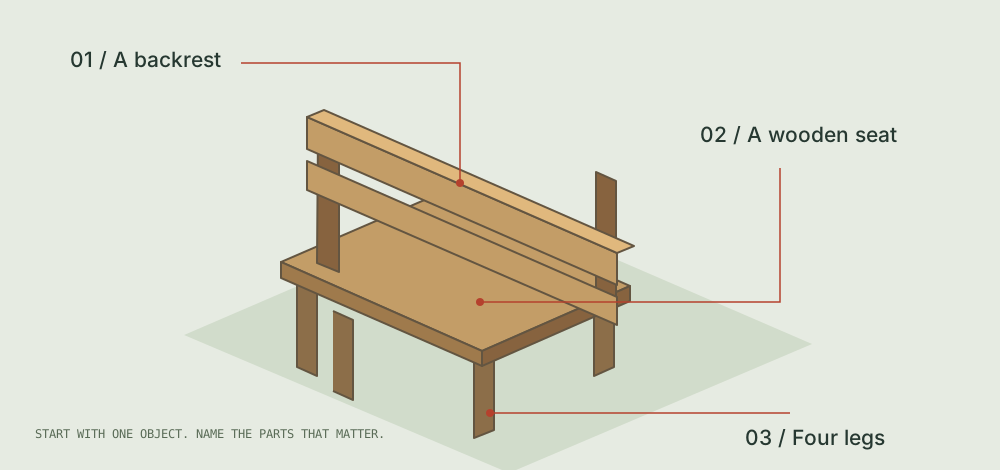
Build a small wooden bench with a backrest and four legs in front of me.
Follow Open bench example to open the world with that text ready. Change the wording if you want, then select Say. Wait for the request to finish. Opening the example does not submit it for you.
Avoid adding a fountain, a person, lighting, and a garden to the first request. If the bench is wrong, you should be able to tell which part needs attention. A smaller brief makes that decision easier.
Look for three things.
- Silhouette. Move to a side view. Does the outline still read as a bench?
- Parts. Find the seat, backrest, and four legs. Check that the supports meet the seat.
- Ground contact. Look near the feet. The bench should sit where you intended, rather than float or disappear below the ground.
On a computer, left-drag to orbit around a visible object. Use WASD or the joystick to move through the space, and the mouse wheel to adjust your view. Changing the camera is an inspection step; it does not change the object.
Do not judge a result from its front view alone. A part can look connected from one angle while being visibly separate from another. Inspect before spending another request on fine detail.
Make one change you can verify.
Open the pencil editor and select the bench you created. Check the selection before changing anything. You can also edit models created by other people. If someone is already modifying the same object, wait for them to finish and try again.
For a shape change
Use the selected-object chat action. Describe the difference and what should stay the same.
Make the selected bench’s backrest taller. Keep the seat and legs unchanged.
Wait for the revision, then compare the backrest with the seat. If the change is unclear, inspect from the side before sending another request.
For a direct adjustment
Use the editor’s position, rotation, scale, or color controls. Try one property at a time. Make the adjustment, inspect its preview, then select Save when you want to keep it.
Use Cancel if the preview moved away from your intention. After saving, look at the object in the world again to confirm the change is there.
A useful stopping point: the bench has the parts you named, you have seen it from two angles, and you can point to the revision you made.
If something looks wrong
The request is still running
Watch the status near the input. Wait for a result or an error before sending another request; repeated submissions make it harder to tell which result belongs to which instruction.
The object is missing a part
Select your creation and name the missing part. “Add the missing backrest to this bench” gives a clearer next task than “make it better.”
The scale or position is wrong
Use the editor for a focused adjustment. Compare the bench with a nearby object, then check both the ground contact and the space around it.
I cannot edit this object
Check the selection first. If someone else is modifying the same object, wait a moment and try again. If the object has changed, select its latest version before continuing.
I wanted a new object
Leave the current editing selection before describing the new subject. Otherwise your request may be understood as a revision to the selected creation.
Give the bench a neighbor.
Once the bench works, add a tree. Leave space around both objects so you can inspect the relationship between them. The tree gives you a scale reference; it does not need to be a complete landscape.
Create one tree with a brown trunk and a rounded green crown in front of me.
Describe only what you need for the scene. If you attach a reference image, use one you have permission to share and keep unrelated personal information out of it. Review any suggested prompt before sending it: you decide whether to create an object or change a selected one.
For more starting ideas and control details, visit the AI 3D world builder page. If you were looking for characters with conversations and relationships, the AI Town guide explains that different experience.
Return to the worldQuestions about 3D objects
Why build 3D objects with AI one at a time?
A short brief makes it easier to connect your words to the result. Name one subject, its main parts, and its placement. If several 3D objects arrive together, it can be harder to decide which instruction needs changing. Finish the bench first, then add the tree as a separate request. You can inspect each creation and decide whether its size works beside the other.
Can I build 3D objects with AI for another application?
This walkthrough ends with a creation inside Sociome. If your next step requires an exported mesh, a particular file format, or a specific polygon budget, establish those requirements before choosing a workflow. A visible shape is only one part of that decision. These steps help you describe and inspect 3D objects; they do not establish that the result meets a manufacturing, animation, printing, or game-engine specification.
How do I check the proportions of 3D objects?
Use a familiar neighboring object as a visual reference, then change your viewpoint. A tree can make a bench look unexpectedly small; a doorway can help you judge the size of a nearby item. This is a visual comparison, not a measurement guarantee. If the proportions feel wrong, adjust one property, inspect the preview, and compare again before saving.
Do I need to write code?
No. This Sociome walkthrough uses a text prompt, the 3D stage, and the editor. It does not require installing a model or running a command.
Can I ask for several changes at once?
You can describe a complex request, but one visible change is easier to inspect. Start with the largest difference, check the result, then decide whether another revision is needed.
Is the first result supposed to be final?
No. The first result is something to inspect. The goal of this tutorial is a recognizable bench and one deliberate revision, not a finished manufacturing or game asset.