
Look around the object.
On a computer, left-drag to orbit around a visible object. Right-drag turns your view; the mouse wheel changes your view distance. A side view can reveal a missing support or an awkward proportion.
Sociome / object creation
Describe one object. See it occupy a space. Walk around the result, then change what you made.
Opens the live builder with an example ready. You choose when to send it.
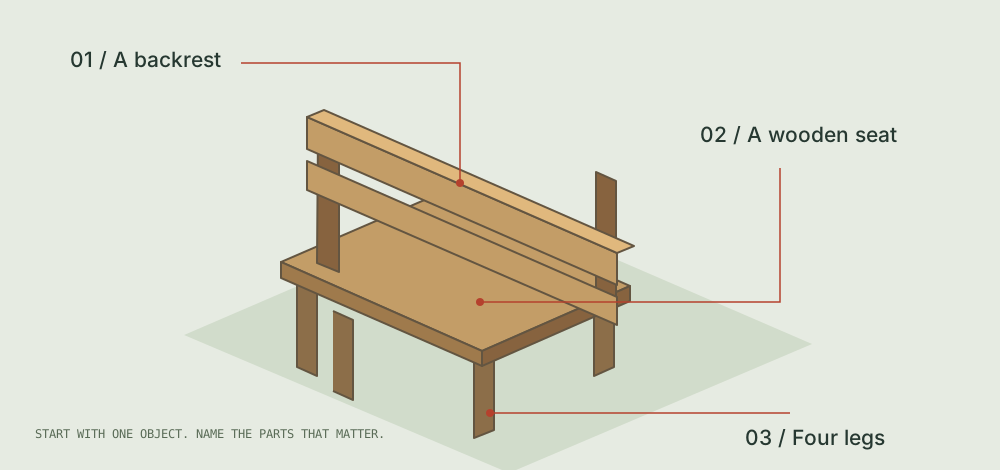
Build a small wooden bench with a backrest and four legs in front of me.
What appears in the world
Sociome is an AI 3D world builder for creating and editing objects through conversation. The output sits in the world: you can change your viewpoint to check its front, sides, and proportions. You are not limited to looking at one rendered image.
The request still leaves choices for the system. “A wooden bench” does not specify the angle of the backrest or the width of the seat. Name the parts you care about, wait for the result, and judge those parts before requesting more. This is an iterative way to build a small scene.
From looking to making
On a computer, left-drag to orbit around a visible object. Right-drag turns your view; the mouse wheel changes your view distance. A side view can reveal a missing support or an awkward proportion.
Use WASD or the on-screen joystick to move. Check the distance to nearby objects. A house needs room in front of its door; a bench should not disappear inside a tree.
Open the pencil editor and select an object you made. Use position, rotation, scale, or color controls for a direct change. For a different shape, use the selected-object chat action.
Give the scene an anchor
Build one at a time. These examples open in the existing world; they do not send a request automatically.
Build a small house with cream walls, a red pitched roof, a front door, and two windows in front of me.
Check the roof, doorway, and two windows before adding another object.
Create one tree with a brown trunk and a rounded green crown in front of me.
Check the trunk-to-crown proportion and contact with the ground.
Choose the output before the tool
Google DeepMind’s Genie creates interactive world-model experiences. World Labs Marble documents persistent worlds and export options. Their outputs and controls differ from an object-building workflow.
If you need a particular mesh format, polygon budget, or rig, begin with those requirements. A viewable result alone does not establish that an asset is ready for printing, animation, or a game engine.
Use Sociome to describe, inspect, and revise things inside its shared 3D world. This page does not promise a particular downloadable file format or a photorealistic world from one prompt.
Where it fits
A scene study, a classroom example, or a playful object is a good place to begin. The value is in seeing how a shape sits beside other shapes and being able to make the next adjustment.
For engineering dimensions, manufacturing, or an animation-ready character, choose a specialist tool. A person-shaped model in Sociome does not have autonomous memories or relationships. For that kind of experience, read the Enjoy AI Town comparison.
Start with the subject, then name the few parts that will make it recognizable. For a bench, the seat, backrest, and four legs are a clearer starting point than a long list of moods or styles. Add a material or color when it matters to your idea, and say where you want the object. Keep the request small enough to inspect. Before sending, ask yourself what you will look for in the result: the backrest meeting the seat, the supports reaching the ground, and enough space around the bench to see it from the side.
Choose one anchor object and inspect it before adding its neighbors. A bench can anchor a small outdoor scene; a house can give the rest of a scene a sense of scale. Add the next subject in a separate request, then compare both objects from the same viewpoint. Look for space between them, believable relative sizes, and a clear direction to move through the scene. Use the editor for placement and scale changes to your own creations. If a shape itself is wrong, select that creation for a focused chat revision. Avoid changing several objects at once while you are still deciding what is wrong.
Begin with the overall outline before looking at small details. For the bench example, a side view should let you distinguish the seat from the backrest; another view should let you count the supports and see their contact with the ground. Check the same parts after a revision, so you can tell what changed. Moving the camera only changes your view, while editing changes the creation. Check which object is selected before sending a revision request. If a result is difficult to judge, move to a clearer angle before requesting more detail. Treat each pass as a small decision about shape, proportion, or placement rather than a demand to finish the whole scene immediately.
Yes. Select an object you created, then use chat for a shape change or the editor for position, rotation, scale, and color. Inspect the result before saving a direct edit.
No complete-game output is promised. Sociome centers on visible objects and scene building, rather than game rules, rigged characters, or a packaged playable release.
You can view the shared world, but editing is limited to objects you created. If selection or editing is unavailable, check that you are choosing your own object.
An image gives you one view. In Sociome, you can change your viewpoint around an object in the world. That lets you inspect its silhouette and spatial relationship to other objects.
Use the bench example above. Check its backrest, four legs, and ground contact, then make one deliberate change. The step-by-step guide explains what to look for.
Updated September 8, 2026. Enter the world